
Samples and exports
Browse saved samples
Section titled “Browse saved samples”Click Samples, the library button at the upper right, to browse saved presets. Select a preset to see its samples, prompts, pad assignments, and saved playback durations.
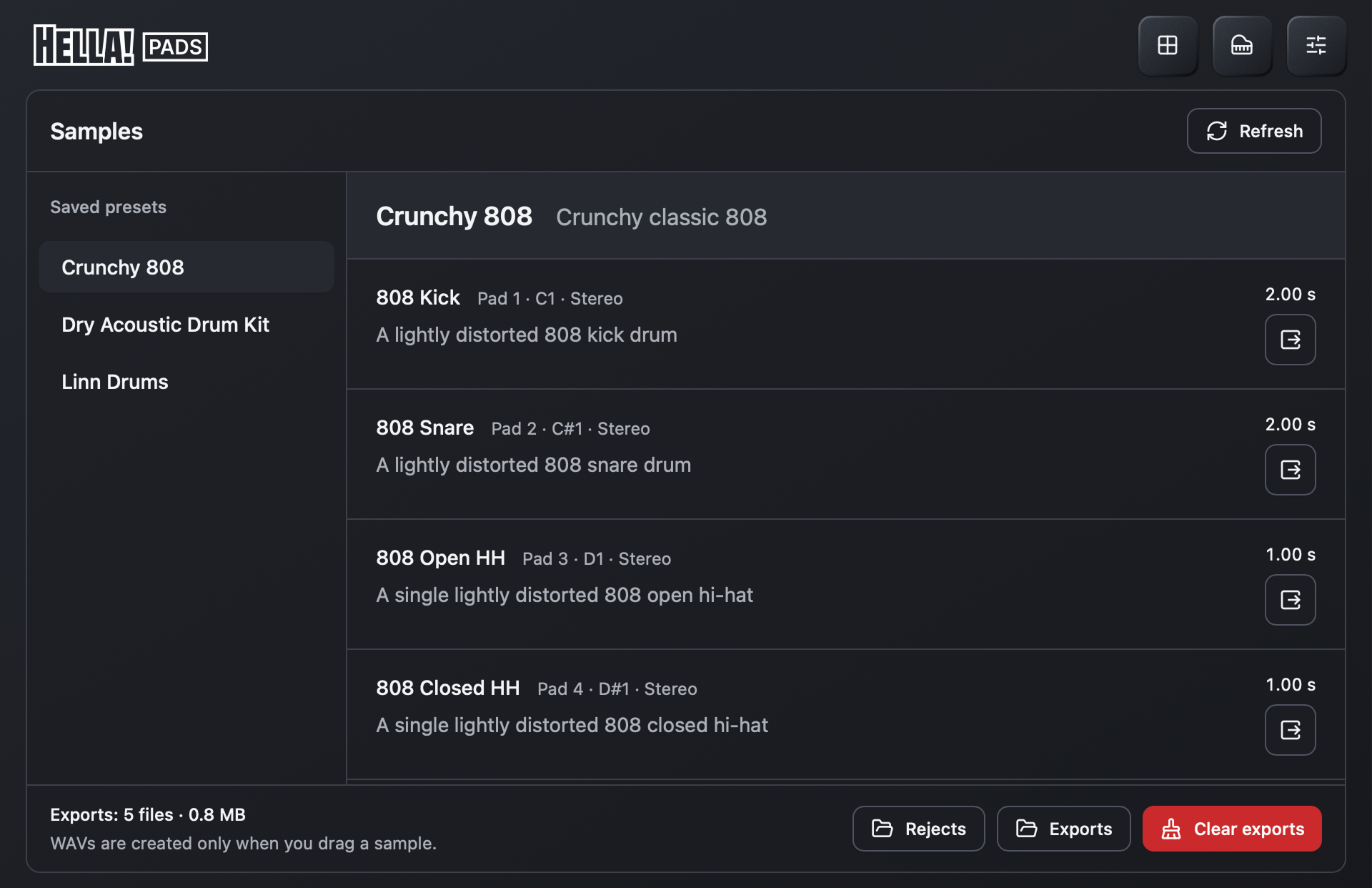
Browsing does not load another kit or discard edits to your current one. Use the same toolbar button to return to the pads. Click Refresh after changing saved preset files.
The browser lists presets in the default Presets folder and the currently loaded preset. If a kit saved elsewhere is missing, open it with the folder button first, or keep it in the default Presets folder for regular browsing.
Export a saved sample
Section titled “Export a saved sample”- Select the preset containing the sound in the Samples browser.
- Drag the export icon beside the sample toward an audio track in your DAW.
- Keep the mouse held while the WAV is prepared, then drop it into the track.
The library exports the version stored in the preset, including its saved trim. If you changed the sound in the current kit, save the pad and update the preset first, then refresh the library.
Browsing the library or clicking an export icon does not create a WAV. Preparation begins when you drag.
Export a preview or current edit
Section titled “Export a preview or current edit”The waveform player has an export icon beside Stop. Drag it to your DAW to export the displayed sound and current trim, including an unsaved generation preview or edit.
This does not accept the preview or save it to a pad. It is useful when you want the audio on a track without keeping it in the kit.
What the WAV contains
Section titled “What the WAV contains”Exports use the selected playback range, original sample rate and channels, and the short end fade applied to a trimmed ending. They do not include the instrument’s master gain or effects on your DAW track. To capture those, record or bounce the track in your DAW.
Exports are stored in:
~/Library/Application Support/Hella Pads/Exports/Exporting the same audio and trim reuses the existing file. Changing either creates a separate file. The Samples footer shows the export count and storage used; Exports opens the folder.
Clear exported files
Section titled “Clear exported files”Clear exports removes the exported copies after confirmation. Saved presets and pad samples remain, and you can create exports from them again. A preview that was never saved to a pad or preset may have no other copy, so keep any exported draft you need before clearing the folder.