
Generating samples
Connect your Stability account before generating. Each request makes one sample; you can build a kit by repeating the process on other pads.
Generate into an empty pad
Section titled “Generate into an empty pad”- Click the small settings icon on an empty pad to open New Pad Sample.
- Enter a Prompt describing the sound. For example: “A dry kick drum with a short decay.”
- Choose Sample type: Instrument, Music, or SFX. Set Duration from 1 to 30 seconds. The defaults are Instrument and 2 seconds.
- Click Generate. When the waveform appears, play the preview. Use the handles to trim it, or Regenerate to request another candidate.
- Choose Accept & Continue, then set the sample name, MIDI note, and voice mode.
- Click Save to assign it to the pad. Click the pad to hear it in the kit.
You can keep playing existing pads while a request runs. Each plugin instance handles one generation at a time.
Replace a pad’s sound
Section titled “Replace a pad’s sound”Open a populated pad’s settings and choose the Generate tab. Set the prompt, sample type, and duration, then generate and audition a replacement. Click Save Generation to assign it.
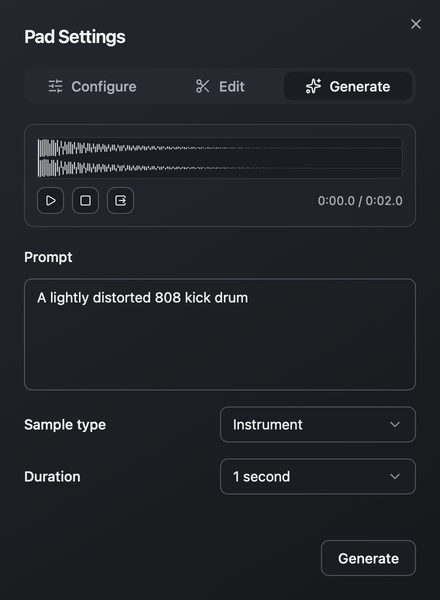
The pad’s existing sound stays in place while you preview the replacement. Closing the drawer or pressing Escape discards unsaved changes. Each tab has its own save action, so save the change in the tab where you made it.
Write a useful prompt
Section titled “Write a useful prompt”Describe the source and the qualities you want to hear: a muted guitar pluck, a metallic impact with a long tail, or a soft synth chord with a slow attack. A short, specific description gives you a clear starting point for auditioning results.
Choose a duration that leaves room for the sound’s decay. You can trim silence or isolate a section afterward. Generation may vary from one request to the next; listen before saving.
Keep a result
Section titled “Keep a result”Saving to a pad commits the sample to the current kit. Save a kit preset or your DAW project to keep that state for later.
You can also drag a preview into the DAW without saving it to a pad. To retain candidates you discard, turn on Keep unused generations before generating.
Resume or cancel a request
Section titled “Resume or cancel a request”If retrieval fails after Stability accepted the request, Resume retrieves that same job without submitting another generation. Use the same API key that started it. Results can expire, so resume when you can.
Cancel stops local retrieval. The accepted request may still be charged. If submission could not be confirmed, Hella! Pads does not automatically retry it, since that could submit and charge twice. See troubleshooting.