
Playing and MIDI
Play a sample
Section titled “Play a sample”Click a populated pad, send its assigned MIDI note from your DAW, or play it from a connected controller. Samples play as one-shots: releasing a key does not stop the sound. MIDI velocity controls the strength of the hit.
Pads start on MIDI notes 36–43 and respond on all MIDI channels. Note names can differ between DAWs, so compare the MIDI note number when an octave label looks wrong.
Assign your controller
Section titled “Assign your controller”- Open MIDI Settings with the keyboard button at the upper right of the plugin.
- Click Learn beside the pad you want to assign.
- Play the desired key or pad on your controller. Its note becomes the trigger for that Hella! Pads pad.
- Repeat for the other pads, then save the kit or DAW project to keep the assignments.
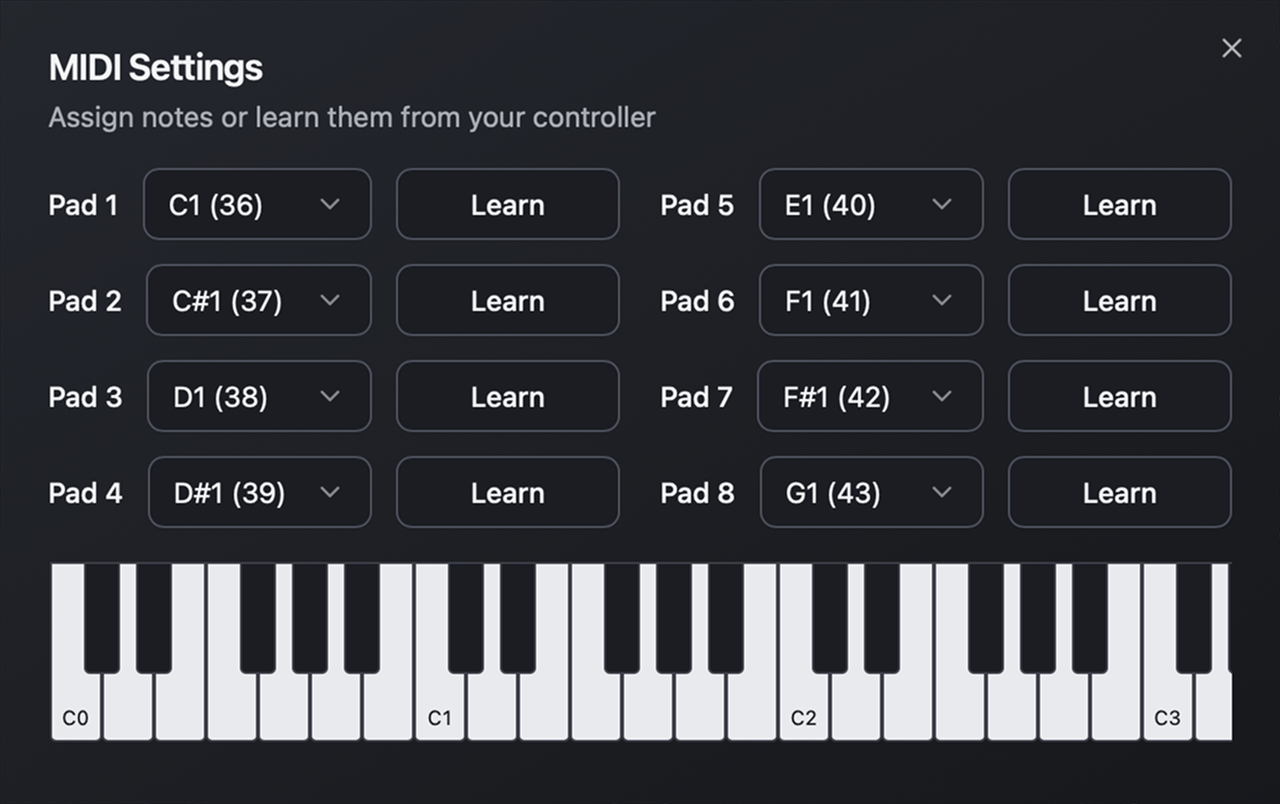
You can choose notes directly from the dropdowns instead of using Learn. Each pad must use a different note. The on-screen keyboard lets you check assignments without a hardware controller.
If Learn does not receive anything, confirm that the controller is enabled and routed to the instrument track. See MIDI troubleshooting.
Overlapping hits
Section titled “Overlapping hits”Open a pad’s Configure tab to choose its voice mode. Polyphonic lets that pad’s hits overlap; Monophonic cuts its previous hit when a new one starts. The instrument supports 32 simultaneous voices across the kit.
Assigning another MIDI note does not transpose the sample. Hella! Pads does not spread a single sound chromatically across the keyboard.
Output level
Section titled “Output level”The master volume affects the whole kit and can be automated by your DAW. Its range is −60 to +6 dB, with a default of −6 dB. Output is stereo.
Several loud samples playing together can push the meters into red. Lower the master volume if needed. WAV exports do not include this volume setting.